Test
This is a test
Understanding Unless topics for AI training
When you train your Unless AI, organizing your training sources into topics helps prevent conflicts and ensures your AI delivers accurate, relevant answers. Topics act as thematic categories that group related training data together, so the AI only uses sources from one topic at a time when generating responses. This is especially useful when your company has multiple products, different audience segments, or varying levels of information access.
When topics make a difference
Imagine your company sells three completely different products, each with its own pricing structure. If you upload all training sources into one place, the AI might mix up pricing information and give incorrect answers. Topics solve this by keeping each product’s data separate.
Topics also help when different user groups need access to different information. For example, your customer support team might use the AI to answer support tickets, while your end customers interact with the AI directly. These groups need different levels of detail and access. Similarly, a software provider in the education sector might provide different information to teachers versus students.
Keep in mind that within each topic, the AI will also search the global training sources. This means you can store shared information globally and keep topic-specific data in its own topic.
Creating a topic
To add a topic, navigate to the Training data tab of your AI zone in the Unless dashboard. Click the Add a topic button, then give your topic a name and description. You’ll configure several options:
- Whether the sources in this topic should be used to generate answers
- Whether to include the topic in related content searches
- Whether to allow this topic to search in an additional topic (useful for historical tickets that your customer support team needs access to)
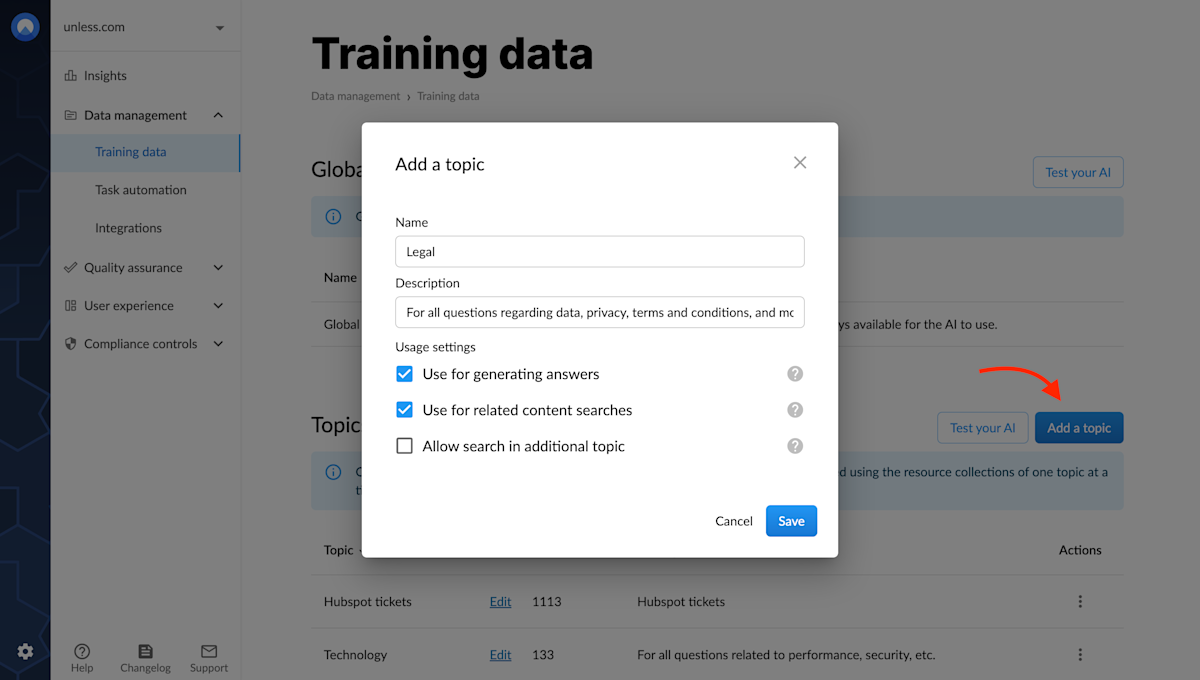
Once you’ve added a topic, click Edit to add training sources as you normally would.
Testing your AI by topic
After adding training data to your topic, you can test how the AI performs within that specific topic. On the training data page, click the test your AI button in the topics section, then select the topic you want to test.
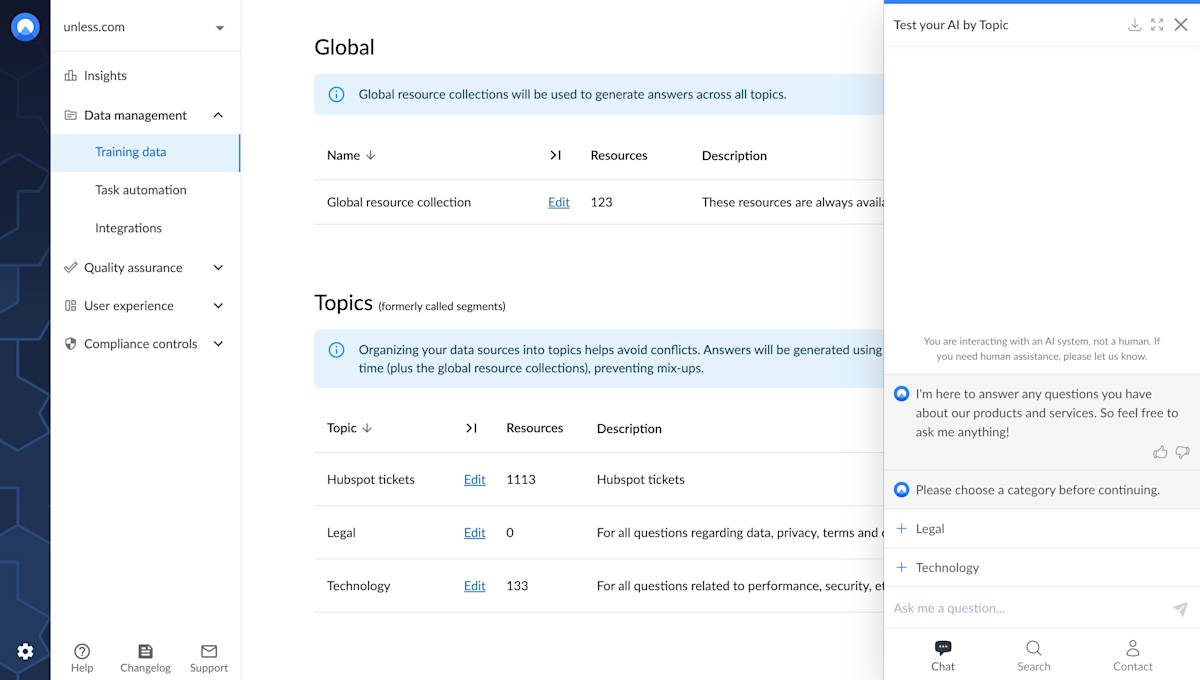
Remember that during testing, the AI also searches the global training sources alongside the topic you selected.
Enabling topics for components
Creating topics is only half the work. You also need to enable them for the components where you want them to appear. Open the component editor for the component you want to configure, then scroll to the Other tab and switch on Expert mode. This reveals additional fields across the different tabs.
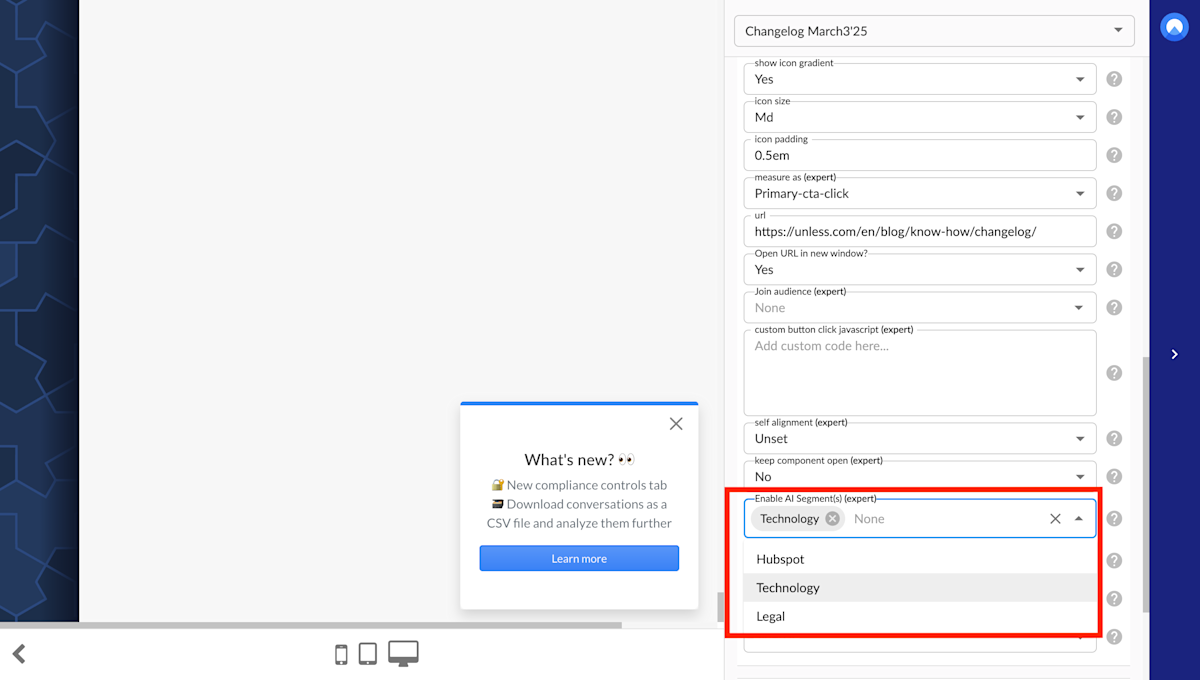
Click open the PrimaryButton tab and find the Enable AI segment(s) dropdown. By default, this is set to None, meaning the global training sources will be used. Select one or more topics from the dropdown:
- If you select one topic, your end users will interact directly with that topic
- If you select multiple topics, the end user will first see the options and can select one of the topics for their conversation
Getting the most out of topics
Topics are designed to prevent hallucinations and AI mistakes by keeping related information organized. Before you start creating topics, make sure your AI is properly trained and configured. The quality of your training data directly impacts how well your AI performs, so take time to select and improve the right sources for each topic.
By using topics effectively, you give your AI a clear structure to work within, which leads to more accurate and relevant answers for your end users.